In the Broadcom portal, open Software → VMware Cloud Foundation → My Downloads. Follow the Free Software Downloads link.
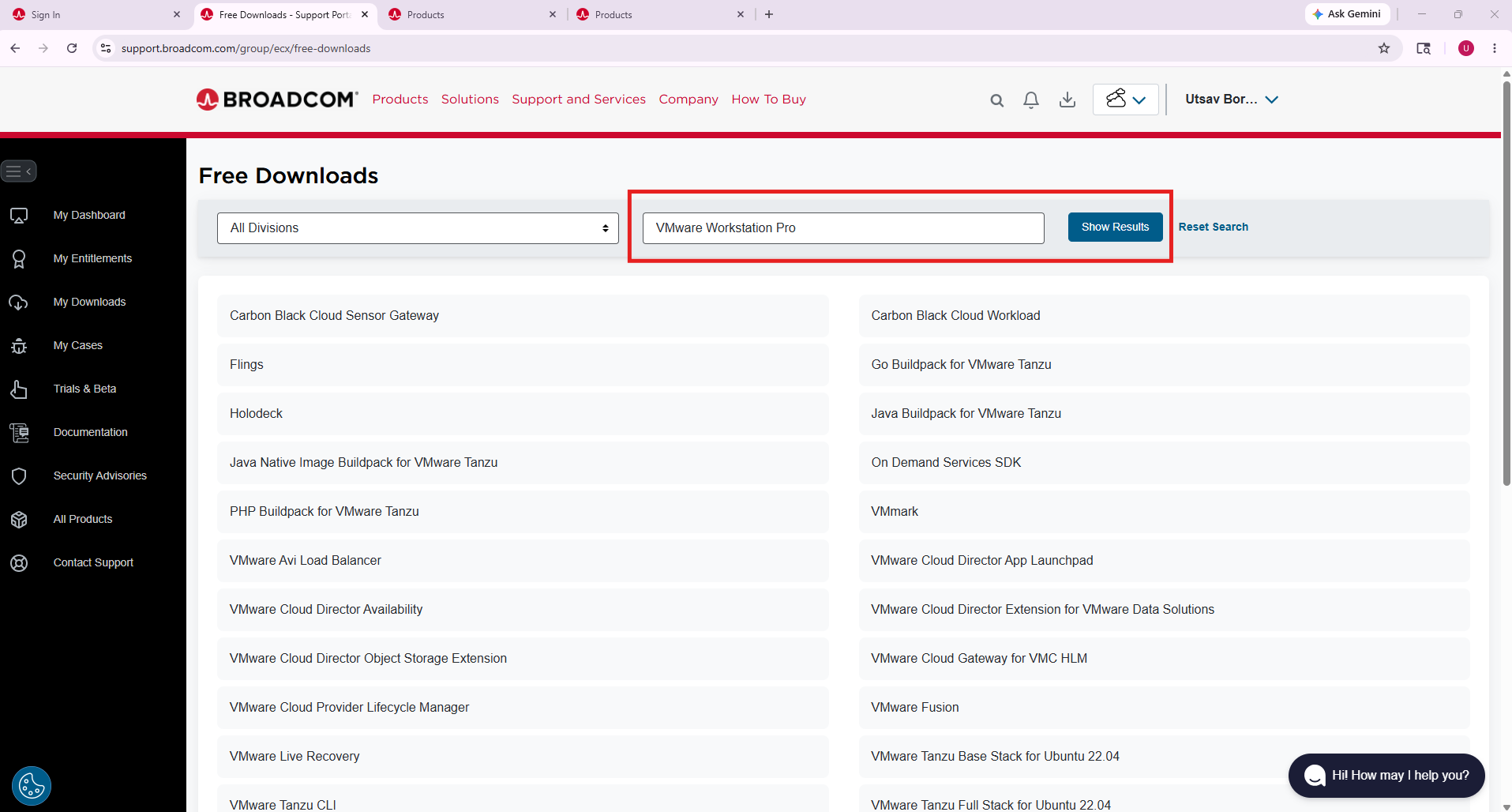
Search for VMware Workstation Pro. Select the Windows release you want, open its terms, and review and accept them to enable the download.
Select the download icon. Complete any account verification requested by Broadcom and save the Windows installer in Downloads.
Show screenshot · Finding VMware Workstation Pro in Free Downloads
2Install VMware on Windows
Open the downloaded VMware .exe installer with administrator permission. Choose Next and review the license agreement.
Follow the compatibility prompts. Choose the installation folder, update preferences, and shortcuts.
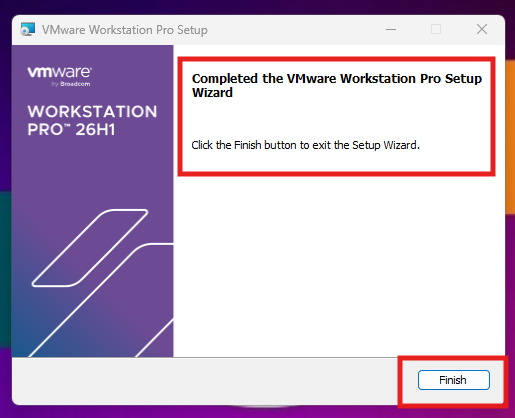
Choose Install (or Upgrade for an existing installation). When the wizard finishes, select Finish and open VMware Workstation Pro.
Show screenshot · Completed VMware installation wizard
3Download and import the WorkStation appliance
Choose Download WorkStation in this guide. Enter your email address and mobile number, then choose Get download link.
Save the 3.34 GB .ova file to your computer. Wait for the download to finish before importing it.
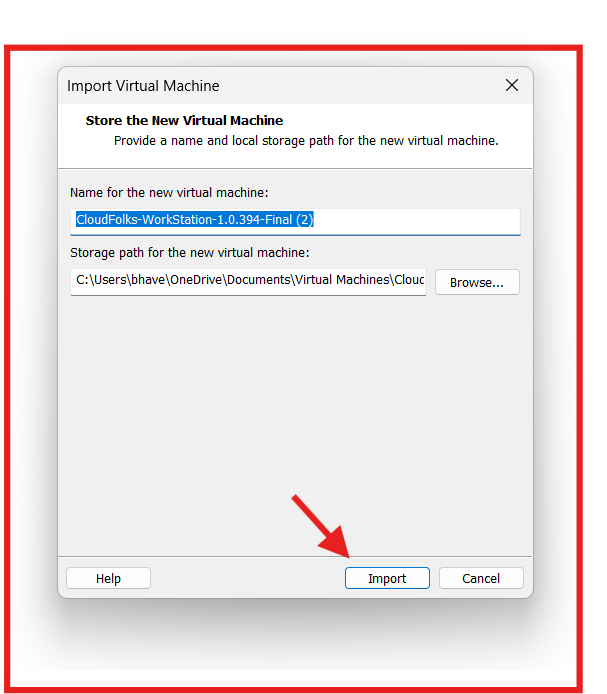
In VMware, choose File → Open and select the OVA. Give the virtual machine a name, choose a storage folder with at least 20 GB free, then select Import.
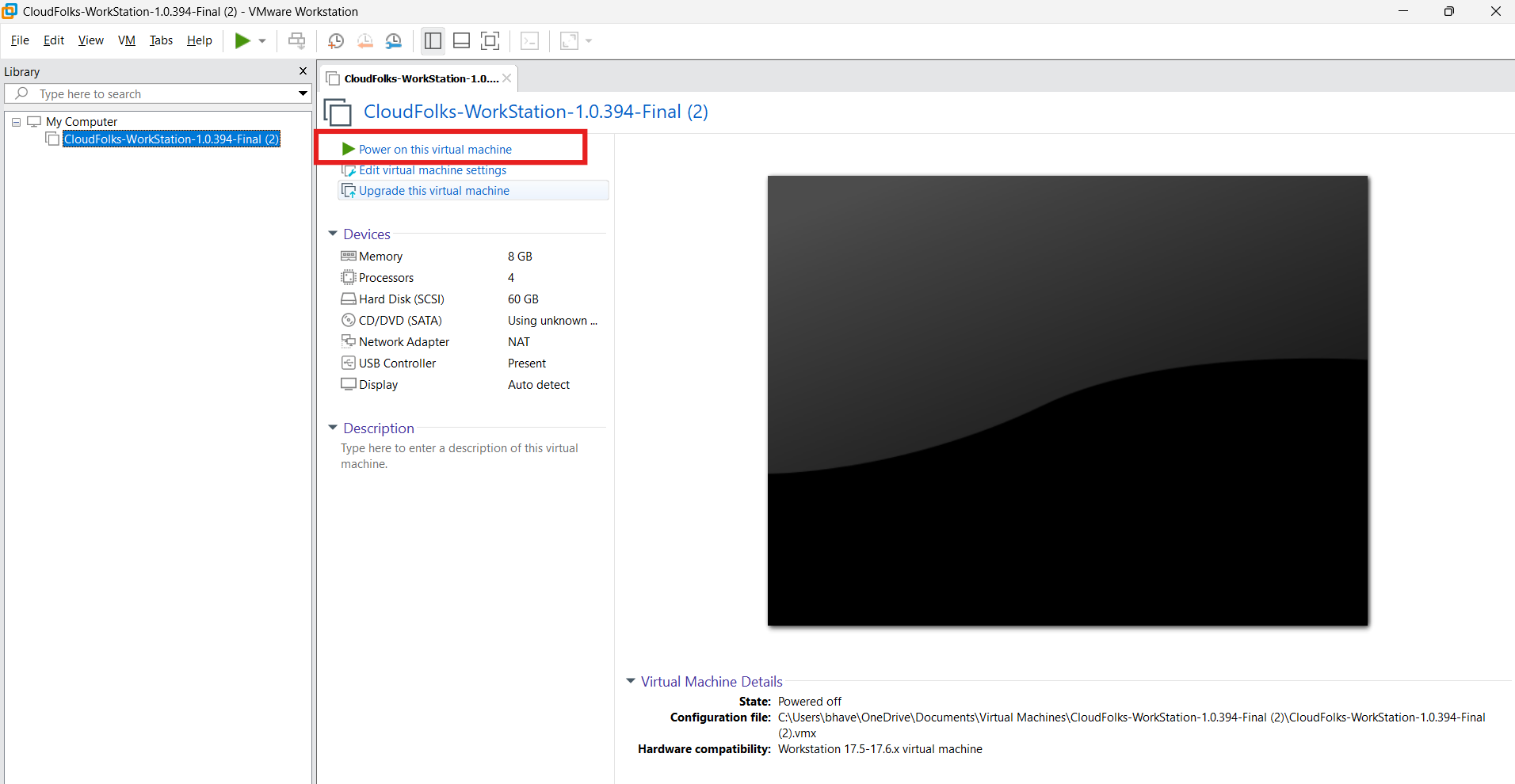
Wait for the import to finish. Select the new virtual machine in the VMware library and choose Power on this virtual machine.
Show screenshot · Choosing a name and storage folder before importShow screenshot · Powering on the imported WorkStation
4Open the console and start a lab
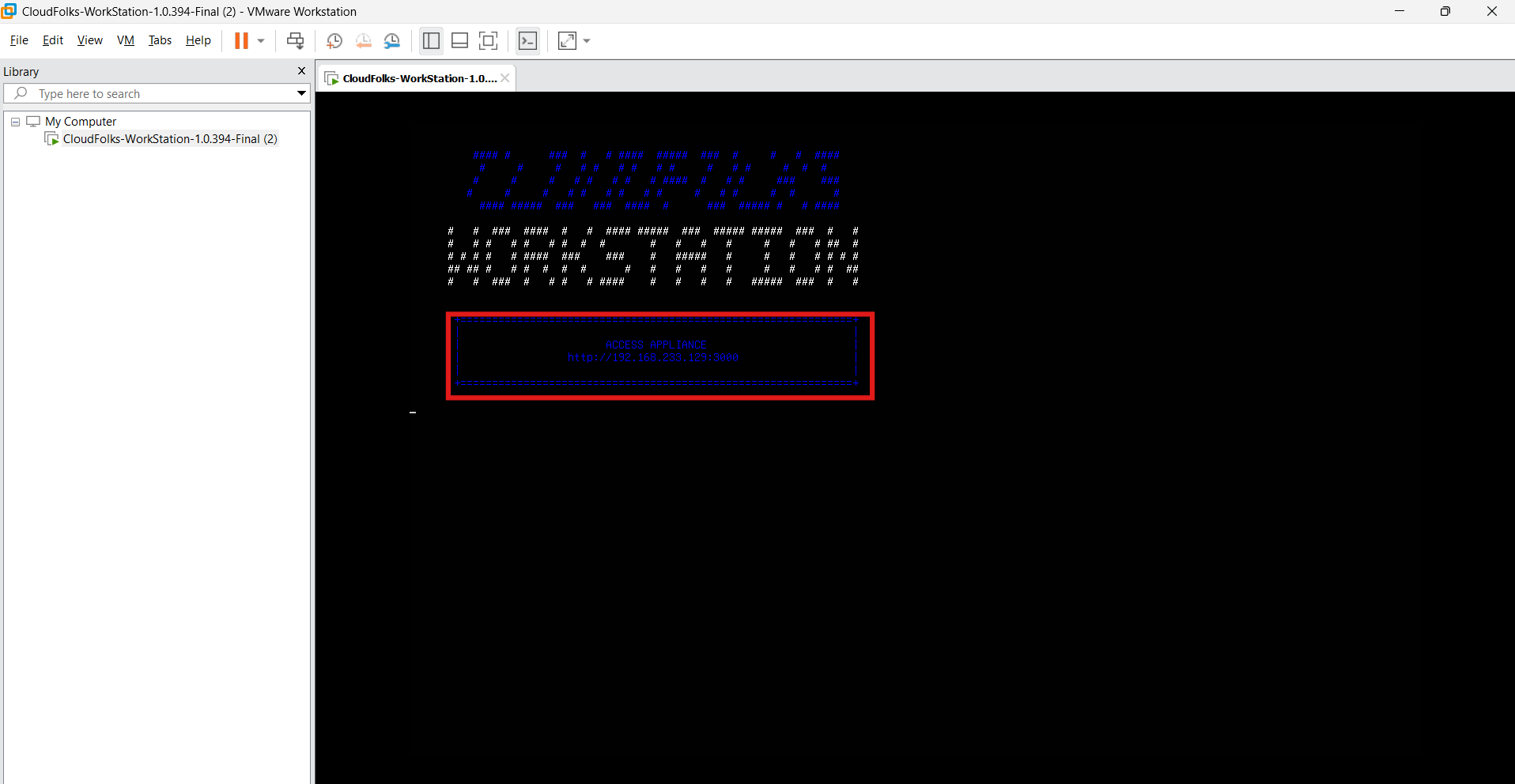
Wait for WorkStation to start. The virtual machine screen will show its local web address.
On the same computer, open that exact address in your browser, including http:// and the port shown. Your local IP address can differ from the one in the screenshot.
Sign in with your WorkStation account. If this is your first visit, choose Create one, complete registration, then sign in.
Open the guided labs and choose your first exercise. Keep the virtual machine powered on while you practise.
Show screenshot · Where to find the appliance’s local web address
?Troubleshoot setup
VMware reports that virtualization is disabled
Check Task Manager → Performance → CPU. If virtualization is disabled, enable Intel VT-x or AMD-V (SVM) in your BIOS or UEFI, restart Windows, and check again.
VMware shows a Hyper-V or Device Guard warning
Follow the installer’s compatibility prompt. If startup is blocked, share the exact message with support before changing Windows features used by WSL, Docker, or your organization.
The OVA will not import
Confirm the download finished and the destination has at least 20 GB free. If VMware reports an invalid file, download the OVA again.
No IP address appears, or the browser cannot connect
Wait a couple of minutes after boot. Check that the VM’s network adapter is connected and set to NAT, then open the address and port on the VM screen. Restart the appliance if an address still does not appear.
The first lab starts slowly
Allow the cluster a few minutes to start. Close unused applications and check the memory recommendations below.
Sign-in fails
Check your internet connection and use the email associated with your WorkStation account. Choose Forgot Password if needed, or share the error message with WorkStation support.
Before you download
Is your computer ready to practise?
Enable virtualization in your BIOS or UEFI settings. Leave enough resources for your host operating system as well as the virtual machine.
Apple Silicon Macs are not currently supported. Using an Intel Mac or unsure about your setup? Check with WorkStation support.
WorkStation environment requirements
Resource
Minimum
Recommended
CPU
2 vCPU
4 vCPU
Memory
4 GB RAM
8 GB RAM
Storage
20 GB free
SSD
Windows or Linux with virtualization enabled. Internet is needed for login, lab access, updates and support.
Built around the learner
You bring the curiosity. We’ll bring the practice space.
Understanding a concept is a start. Feeling comfortable at the terminal takes practice. WorkStation gives that practice a place in your everyday learning.
Bhavesh AtaraFounder & trainer · CloudFolks HUB
A few things you might be wondering
Before your first command.
What is CloudFolks WorkStation?
It is a local Kubernetes practice environment supplied as a virtual machine. Use its guided, practice and challenge labs to develop hands-on command confidence.
Do I need an AWS or other cloud account?
The Kubernetes practice environment runs on your own computer, so you do not need a cloud account for local practice. Internet is still required for login, lab access, updates and support.
Can I use it for CKA preparation?
WorkStation supports practical command and troubleshooting practice that can help you prepare. It is not a certification or a guarantee of passing the CKA exam.
Does it work without internet?
The practice environment runs locally, but login, lab access, updates and support need internet. Do not plan on a fully offline experience.
Where do I check access and support details?
Open WorkStation support for current access terms and help with your setup. Check the current terms before you start; downloading the virtual machine does not establish a lifetime access entitlement.
 CKA practice labs